Release v2.14.0
Latest release.
QuickBooks Online (QBO) integration
Overview
The app can connect to QuickBooks Online so you can sync users as customers and create invoices from issues. Connection is per user via OAuth; admins control whether user sync and issue-to-invoice sync are enabled.
Setting up the integration
- Connect your account: An admin (or any user who will use QBO features) goes to Settings → QBO (or the "Connect to QBO First" link on a user or issue page) and completes the QuickBooks OAuth flow. After connecting, that user has a QBO token and can sync users and create invoices when the relevant settings are on.
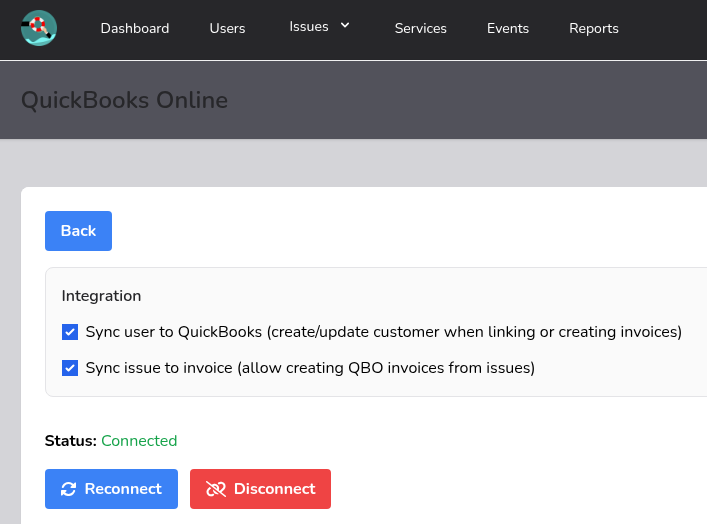
- Admin toggles: In Settings → QBO, admins can enable or disable:
- Sync user to QBO – allows syncing users as customers in QuickBooks.
- Sync issue to invoice – allows creating and updating QBO invoices from issues.
When a feature is disabled, the UI shows that it's turned off in QBO settings (e.g. "Sync user to QBO is disabled in settings" or "Sync to invoice is disabled in QBO settings").
Video: Connecting your account to QBO.
Syncing users to QBO
- Where: On a user's profile/show page, when the viewer has connected QBO and "Sync user to QBO" is enabled.
- What it does: A "Sync to QBO" button creates or updates that user as a Customer in QuickBooks (name, email, etc.). The app stores the QBO customer ID on the user record.
- After sync: If the user is synced, a "View customer in QuickBooks" link appears and opens that customer in the QBO web app in a new tab.
Video: Syncing a user to QBO as a customer.
Creating invoices from issues
- Where: On the show issue page, in the QBO section (when the viewer has connected QBO and "Sync issue to invoice" is enabled).
- Flow:
- User checks "Logged into QBO" (and can use "Sign in" if needed).
- "Create invoice" creates an invoice in QuickBooks for that issue (customer = issue requestor, optional billing address and email from issue/requestor). If the issue already has a QBO invoice ID, the existing invoice is updated instead of creating a new one.
- After creation, the new/updated invoice appears in the "Invoices for this issue" list with amount, paid/unpaid/partial status, balance due, and due date where available. Each row links to the invoice in QBO.
- Invoices list: Invoices for the issue are loaded asynchronously after the user confirms they're logged into QBO, so the issue page stays fast. The list shows doc number (or "Invoice #<id>"), total, status, and a link to open the invoice in QBO.
Video: Creating an issue invoice in QuickBooks.
Navigating to a customer in QuickBooks
- From a user page: When the user has been synced to QBO, "View customer in QuickBooks" (with the QBO logo) opens that customer's profile in QuickBooks in a new tab.
- From an issue page: When the issue has a requestor who is synced to QBO, a "View in QBO" link next to the requestor opens that requestor's customer profile in QuickBooks in a new tab.
Limitations
- Billables are not synced. The integration creates/updates customers and creates/updates invoices from issues (e.g. requestor, billing info, and a placeholder line). It does not sync billable items, line-item details, or other billable data from the app into QBO line items. Invoices created from issues use a simple default line; further line detail or product/service sync would require a future enhancement.
Admin settings summary
| Setting | Effect |
|---|---|
| Sync user to QBO on | "Sync to QBO" and "View customer in QuickBooks" available on user pages. |
| Sync user to QBO off | User page shows sync is disabled. |
| Sync issue to invoice on | "Create invoice" and "Invoices for this issue" available on the issue page. |
| Sync issue to invoice off | Issue page shows sync is disabled; "Create invoice" hidden. |
Toggles live under Settings → QBO and apply app-wide.
Enforce MFA (authenticator app)
Admins can require two-factor authentication for all users via a setting.
- Where: Settings → Security. An option lets you enforce MFA so that users must set up an authenticator app (e.g. Google Authenticator, Authy) and use it when signing in.
- Effect: When enforced, users who haven’t enabled MFA are prompted to do so; they must complete setup before they can use the app.
- Per user: Users enable MFA under their own Settings → Security (see the Enabling MFA video in Settings). The new setting makes that step mandatory when the admin turns enforcement on.